Audit Trail in CanvasXpress
Complete tracking of all modifications and interactions.
Audit Features Overview
CanvasXpress is built to prevent any loss of original data during the analysis process. It stores all modifications and interactions in real-time, including zooming, drag and drops, configurations, etc., made on the visualization and embeds this data as metadata on the image so that they can be reproduced when needed. To reproduce these modification data, use a web page containing a CanvasXpress graph and press <i>Ctrl</i> + <i>Alt</i> + <i>R</i> or click the "Reproduce" button on the menu. This makes CanvasXpress the perfect visualization component for GDPR and HIPPA compliant systems.
Below is an example of a heatmap (top graph) that was modified into a more advanced heatmap (bottom graph).
Every Action is a Grammar Operation
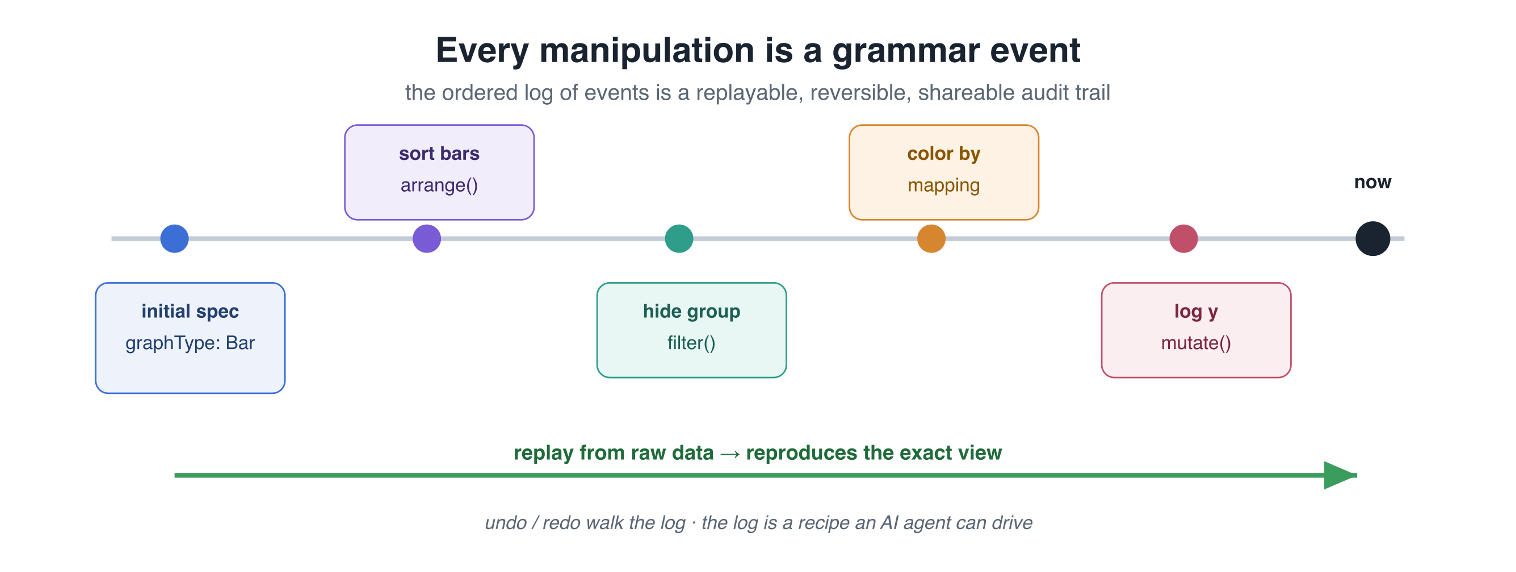
The audit trail is more than a screenshot log: each interaction is captured as a grammar operation, so the figure always knows how it was made. A UI action maps directly to a reproducible grammar verb:
- sort →
arrange - hide →
filter - recolor →
mapping - log-scale →
mutate
The ordered log of these operations is:
- Replayable — replay from the raw data reproduces the exact view.
- Reversible — undo and redo walk the log freely.
- Portable — save and share the recipe, not just the picture.
- Auditable — always answer "how was this figure made?"
The Workflow Timeline widget shows every step that built a figure and lets you scrub through it. Edits from the built-in AI copilot and from external agents via the MCP server land in this same log, so every change — human or AI — is reproducible by construction. See the Architecture for how the grammar and the meta.cxplot spec fit together.
Reproduce
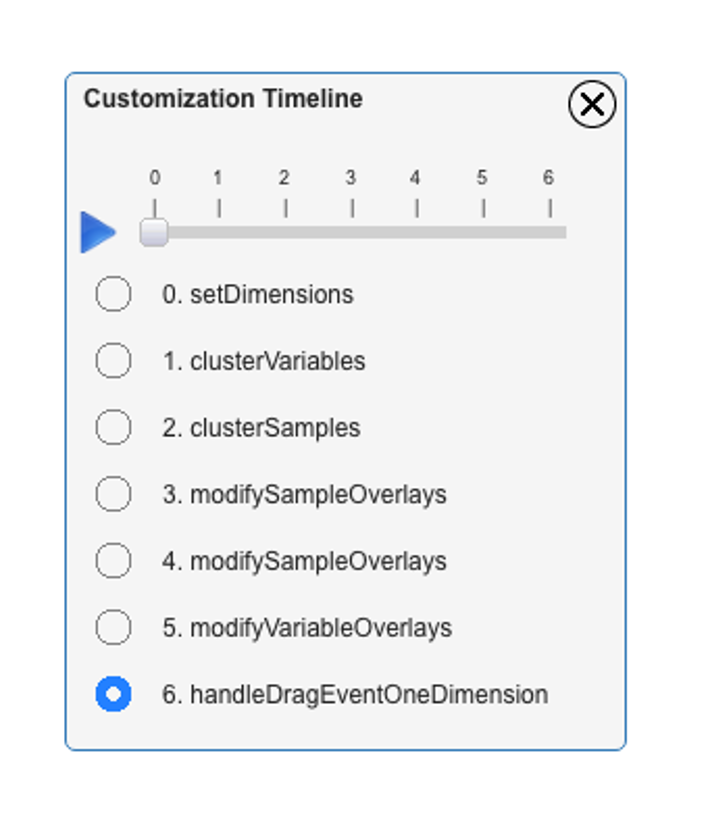
Click the reproduce icon on the toolbar to see how the modification timeline plays out.
